Compress Image to 100KB or Any Size You Need
Compress image to 100KB, 50KB or any size an upload form asks for, at the best quality that fits.
Compress image to 100KB, 50KB, 20KB or whatever size a visa, university, job or government upload form accepts. Choose the limit, and the tool finds the best-looking JPEG that is still under it: it starts at a pixel size suited to the limit and the best quality that fits, and makes the picture smaller still only when quality alone isn’t enough. Some forms also ask for an exact size such as 200 × 230 pixels; you can set that too. A photo from a phone is turned the right way up, and its hidden camera details, such as your location, are left out of every picture you save. Everything happens in your browser, so your photos never leave your device.
- Free, no sign-up
- Files never leave your device
- Up to 100 MB per file
Drop JPG or PNG images here
or
Up to 100 MB per file. Your files stay on your device.
Your photos stay on your device. Nothing is uploaded.
What next
- Need the photos in one PDF? JPG to PDF puts them together.
- Check the new file in the upload form before you submit it.
How to compress an image to a size in KB
- 1
Choose one or more photos or scans (JPG or PNG).
- 2
Pick the size limit, such as 100 KB, or type your own. If the form asks for a size in pixels, set that too.
- 3
Press “Compress”. Each picture shows its new size; save one with “Save”, or all of them together.
How the size and quality are chosen
The ready limits are 20, 50, 100, 200 and 500 KB, and you can type any limit from 5 to 20000. A kilobyte here is 1000 bytes, so “under 100 KB” holds however a form counts. The result card shows sizes the way your device usually does (1024 bytes), so a 99,840-byte file shows as 97.5 KB.
The tool starts at a pixel size suited to the limit, never larger than the original, then looks for the highest JPEG quality between 40% and 92% that fits. Only if even 40% is too big does it make the picture smaller and search again, down to 64 pixels on the long side. That is why a large phone photo at 100 KB comes out at about 800 × 1050 pixels, sharp for a face, rather than full size and smeared.
With “Exact size” the pixel size never changes, so only the quality goes down, as low as 10% if it must. Several pictures can be done at once under the same limit: one is saved directly, more than one in a single ZIP.
Example: a passport-style photo, exactly 200 × 230 and under 50 KB
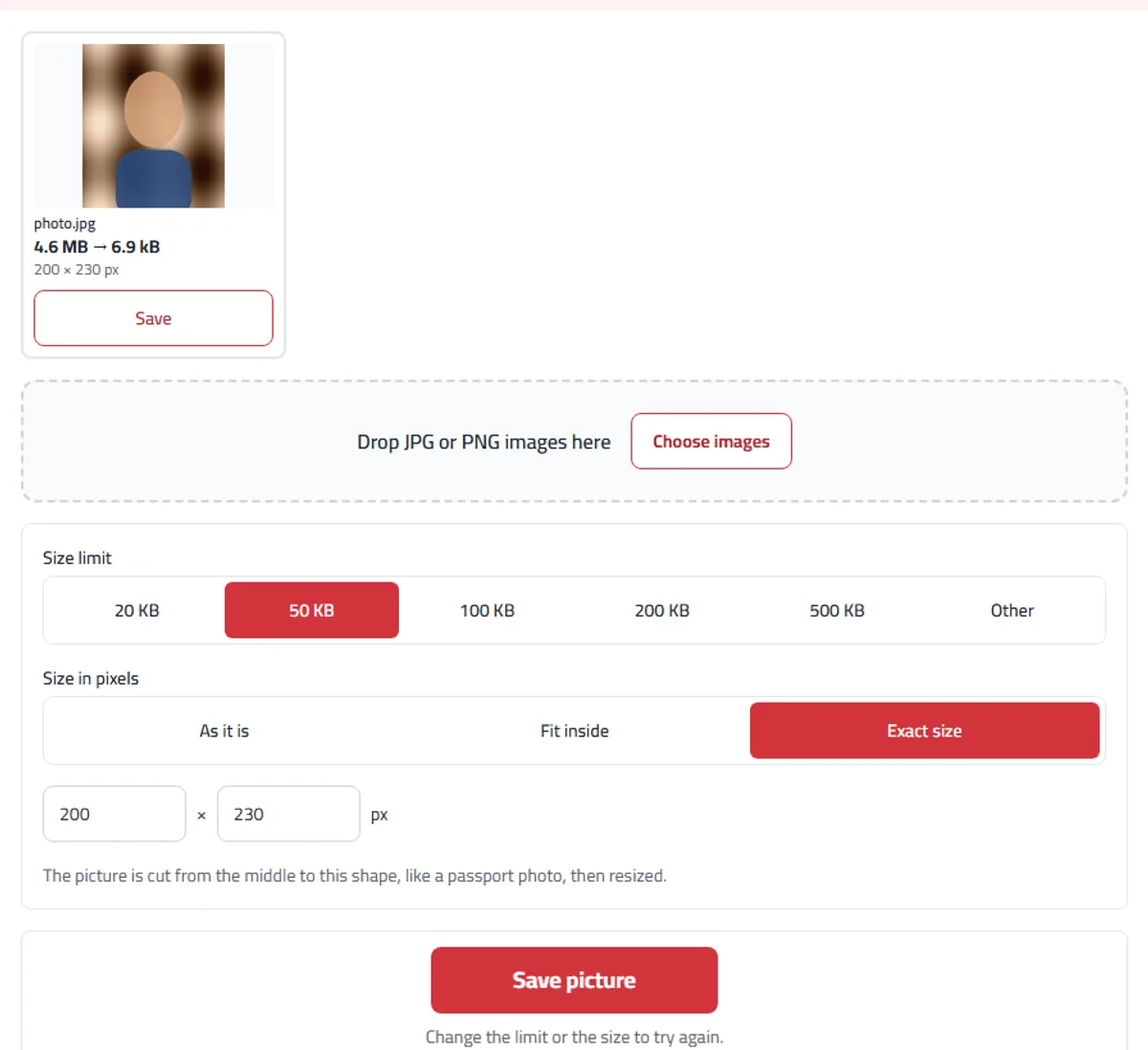
For this example we made a 12-megapixel sample photo, 3000 × 4000 pixels and 4.6 MB, like one straight from a phone camera. The form we had in mind asks for 200 × 230 pixels and no more than 50 KB.
We chose 50 KB, then “Exact size” with 200 and 230. The picture was cut from the middle to that shape and came out at 7 KB, far under the limit, because a picture that small needs little space even at the best quality. The same photo at 100 KB with the size left “As it is” came out at 99.8 KB and 791 × 1054 pixels.
If a form also sets a minimum, such as “between 50 and 100 KB”, a 7 KB file can be refused for being too small. Then leave the size “As it is”, or choose “Fit inside” with a larger size, so the file lands close under the upper limit.
What stays in your photo
No picture you save here carries its hidden camera details, such as the phone model, the date and where it was taken, and a phone photo is turned the right way up. Even a JPEG already under the limit, with the size left “As it is”, keeps its picture exactly as it was, without being saved again, but loses those details, keeping only which way up it goes; its card says “Already under the limit: kept as it was, without its camera details.” JPG to PDF and Add an image leave them out in the same way.
If the form wants a PDF rather than a picture, put the photos together with JPG to PDF and, if the file is still too big, use Compress PDF. For a signature to place on a document, Sign PDF removes the white background from a photo of it.
When you would use it
A passport-style photo for a visa or an embassy form that must be under 100 KB.
A scanned ID card or certificate for a university or job application with a 200 KB limit.
A signature picture that must be under 20 KB.
Several photos at once, all under the same limit, saved together.
What to expect
The result is always a JPEG; see-through parts become white.
Very small limits (under about 20 KB) make pictures small in pixels, and text in a scan may become hard to read.
JPG and PNG pictures only. iPhone photos in HEIC format need to be saved as JPG first.
To make a PDF smaller, use Compress PDF: this tool works on pictures only.
Updated 4 November 2026: camera details such as the phone model and GPS position are now removed from every photo, including a JPEG already under the limit. Pictures saved with this tool before then may contain them.
Frequently asked questions
Is it free?
Yes. No sign-up, no daily limit and no watermark.
Are my photos uploaded?
No. They are compressed inside your browser, on your device. Nothing from your photos is sent to us or anyone else.
Will the file really be under 100 KB?
Yes. The tool counts a kilobyte as 1000 bytes, so a file “under 100 KB” is under the limit however the upload form counts it. If a limit can’t be reached at a size that is still usable, the picture is marked so you know.
How do I reduce image size in KB without making it blurry?
The tool keeps the most quality it can: it picks a pixel size suited to the limit, then the highest quality that still fits under it. A clear photo at 100 KB is easy; at 20 KB, a passport-style photo still looks fine, but a full page of text may not, so choose the largest size the form allows.
Can I set an exact size in pixels?
Yes. Choose “Exact size” and type the width and height, such as 200 × 230. The picture is cut from the middle to that shape, like a passport photo, then compressed. “Fit inside” keeps the whole picture and only makes it smaller.
What happens to PNG pictures?
They are saved as JPEG, which upload forms accept and which gets much smaller. Any see-through parts become white.
Does it work on a phone?
Yes. Choose photos from your gallery or camera. On a phone, “Save or share” puts the new picture in your photos or sends it straight to an app.
My form wants a photo between 50 KB and 100 KB. What do I do?
The tool sets an upper limit and usually lands close under it: a phone photo at 100 KB came out at 99.8 KB. A picture that is small in pixels can’t reach 50 KB even at the best quality, so if the result is under the minimum, choose a larger pixel size or leave it “As it is”.
Are location details removed from my photo?
Yes, from every picture you save here, including a JPEG already under the limit: its picture stays exactly as it was, and the camera and location details are removed, keeping only which way up it goes.
Can I make a PDF under 50 KB with this?
Not directly: this tool makes pictures. Compress the photo here, turn it into a PDF with JPG to PDF, then check the size; a PDF adds a little to the picture inside it.